---
updatedAt: 2025-09-09T00:07:42.000Z
agentTools:
projectIndex: https://docs.lightup.ai/llms.txt
---
# Add virtual tables on relational datasources
You can create a virtual table on certain datasources using SQL. This capability is useful if you want to create data quality checks on tables that you define in Lightup using SQL. Normally you would create views on the datasource to accomplish this, and let Lightup discover the view when it scans the datasource. However, sometimes you may either not have the permissions to create views on the datasource or you may not want to create views directly on the datasource. This capability gives you the flexibility to do that inside Lightup.
# Create
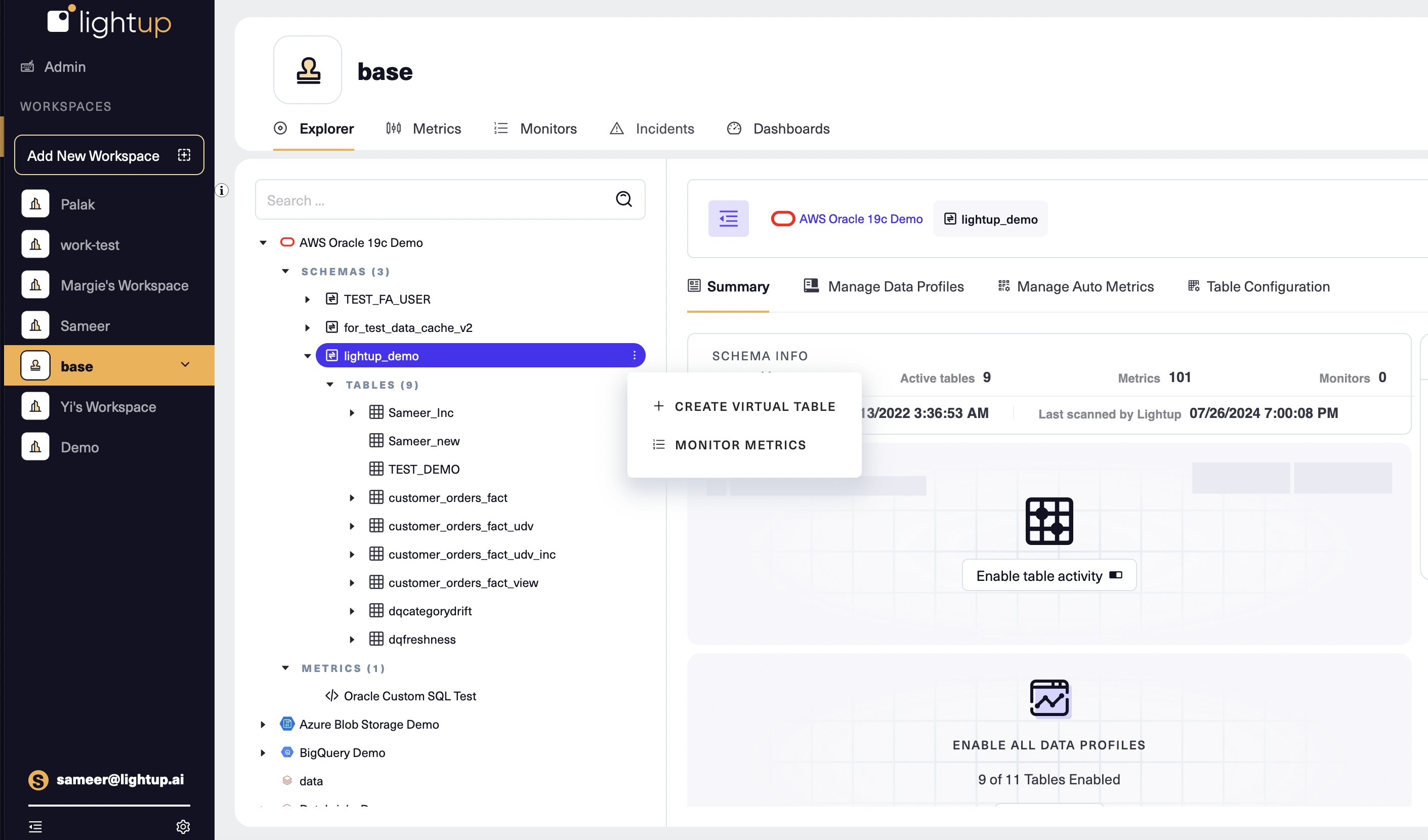
1. **From the schema context menu**
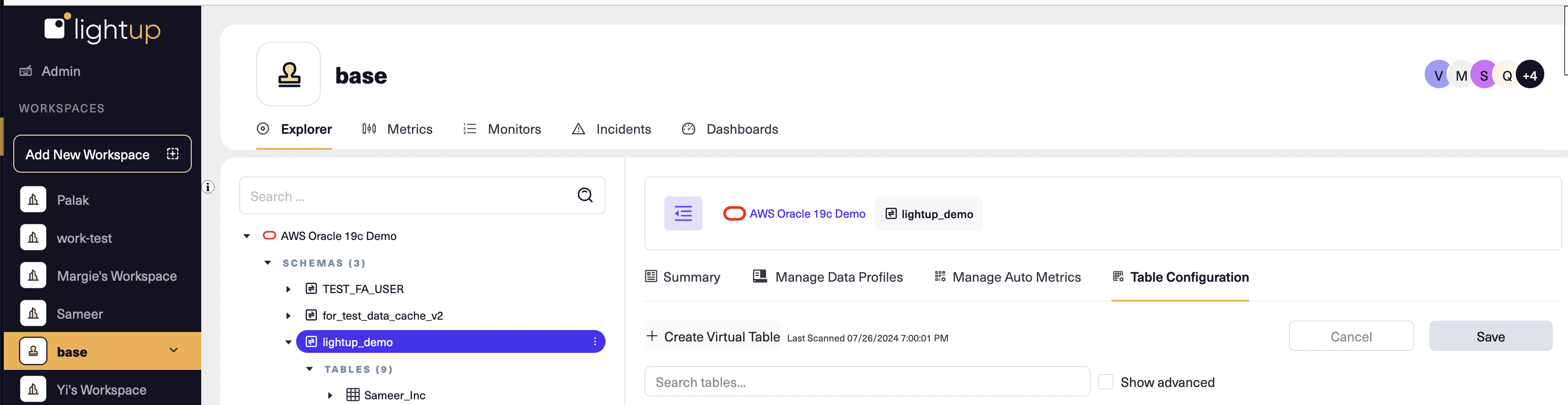
2. **From the Table Configuration tab under a schema**
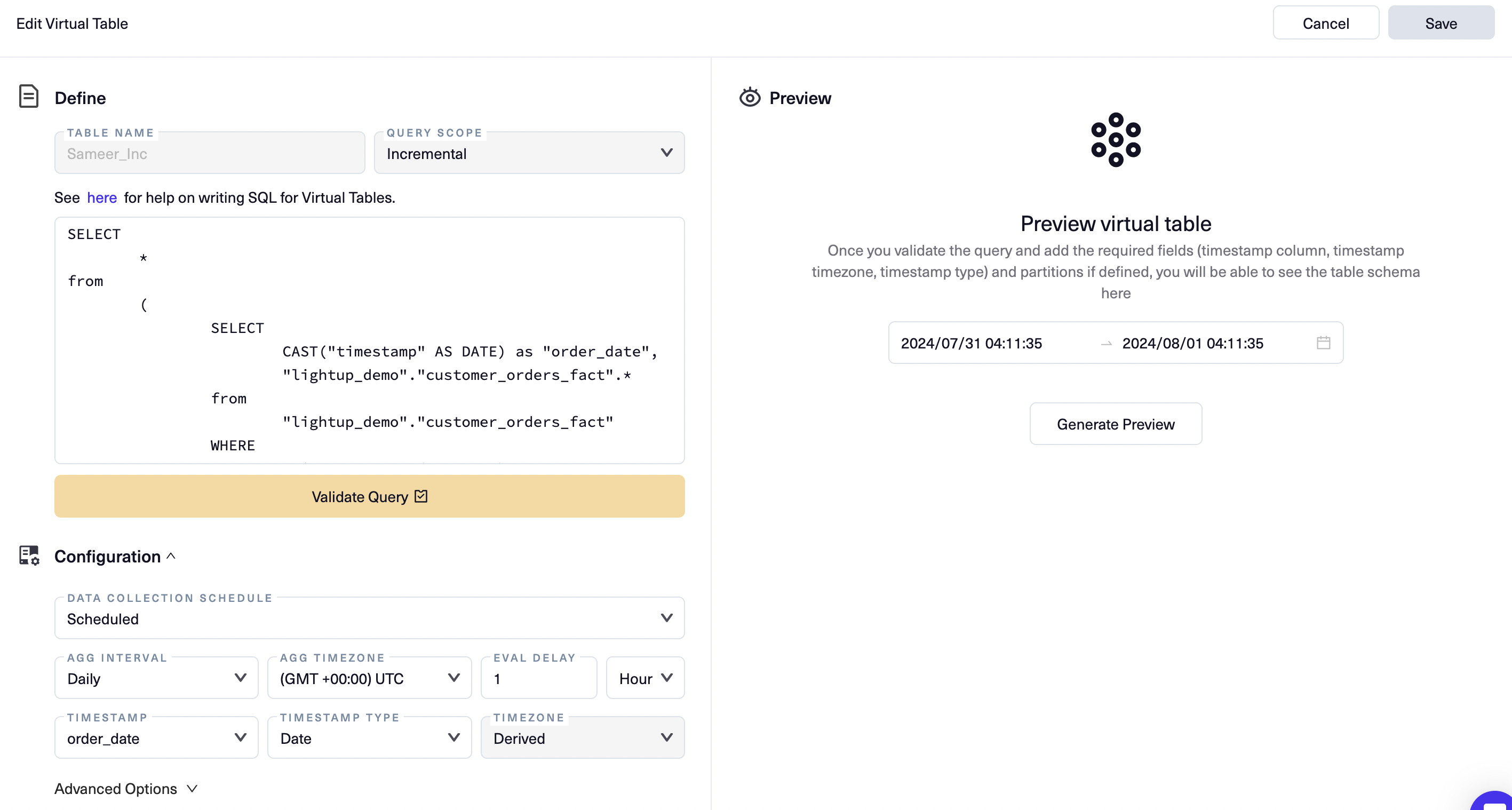
Once you enter the virtual table creation dialogue you can begin defining the virtual table, configure, preview and save it before you create data quality checks (metrics and monitors) on it.
# Define and Validate SQL
1. Add the name of the virtual table and choose its query scope. (["Incremental" or "Full Table"](https://docs.lightup.ai/docs/query-scope))
2. Write the SQL needed to create the virtual table. The requirements for creating the SQL for virtual tables are the same as documented on the [SQL metrics](https://docs.lightup.ai/docs/sql-metrics) page\
**Example**:
1. ```sql
SELECT
*
FROM
(
SELECT
*,
"timestamp" :: date as "order_date"
FROM
"testdata"."customer_orders_fact"
WHERE
"timestamp" >= `{start_ts}`
AND "timestamp" < `{end_ts}`
) as q1
WHERE
"order_date" >= `{start_date}`
AND "order_date" < `{end_date}`
```
3. Validate the SQL using the "Validate Query" button. You cannot save the virtual table without successfully validating the SQL
# Configure
You can optionally add the required configuration parameters before saving in order to finish setting up a virtual table. The configuration parameters are the same as those you would setup for tables as listed in the [Configure tables page](https://docs.lightup.ai/docs/table-configuration).
While this step is optional during virtual table creation, you will eventually need to configure the virtual table when you activate it (see the [Activate](https://docs.lightup.ai/docs/add-virtual-tables-for-relational-datasources#activate) section) before setting up data quality checks on it.
Note that certain configuration fields are required for you to preview a virtual table of incremental query scope (see the [Preview](https://docs.lightup.ai/docs/add-virtual-tables-for-relational-datasources#preview) section)
# Preview
You can optionally preview a virtual table to see its column names, inferred data types as well as sample data retrieved by the SQL query you used to define the virtual table.
The following fields are needed for you to preview the data for [incremental query scope](https://docs.lightup.ai/docs/query-scope)
* Aggregation interval, aggregation timezone, timestamp column name, timestamp column type, timestamp timezone
# Activate
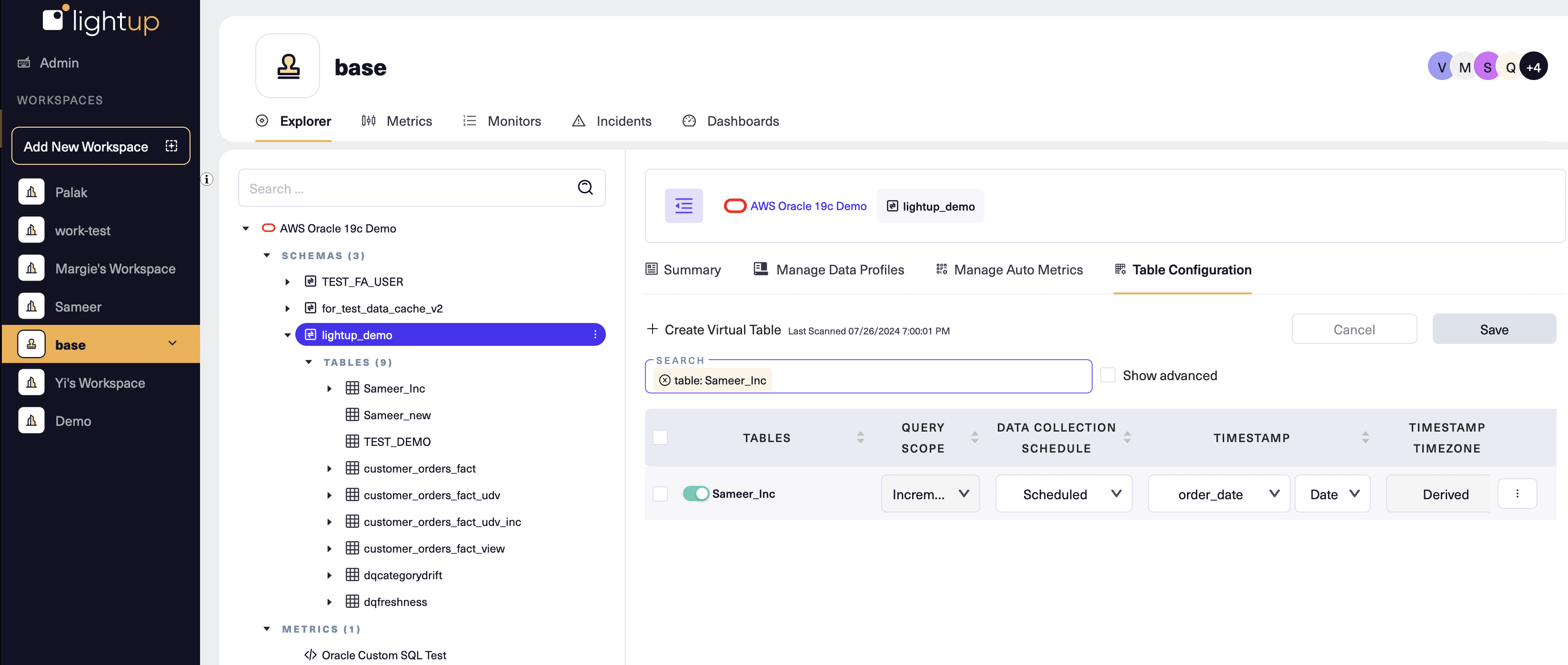
Once the virtual table has been saved, you need to finish setting up the configuration parameters (if you have not already done so as described in the [Configure](https://docs.lightup.ai/docs/add-virtual-tables-for-relational-datasources#configure) section) and activate the table from the schema "Table Configuration tab" by toggling the table on. Once this is done, the virtual table will appear in the Explorer panel under the chosen schema.
# Setup metrics
The following [auto metrics](https://docs.lightup.ai/docs/autometrics-1) are supported on virtual tables
| Metric type | Metric name | Support |
| :------------------ | :---------------------------------------------------------------------------------- | :------------ |
| Table Auto metrics | Row count/Byte count | Not supported |
| | Column activity | Not supported |
| | Update delay | Not supported |
| | Data delay | **Supported** |
| | Data volume | **Supported** |
| Column Auto metrics | Category activity | **Supported** |
| | Distribution | **Supported** |
| | Null percent | **Supported** |
| Custom metrics | [Row by row metrics](https://docs.lightup.ai/docs/row-by-row-metrics) | **Supported** |
| | [Aggregation metrics](https://docs.lightup.ai/docs/aggregation-metrics) | **Supported** |
| | [Compare aggregate metrics](https://docs.lightup.ai/docs/compare-aggregate-metrics) | **Supported** |
| | [Conformity metrics](https://docs.lightup.ai/docs/conformity-metrics) | **Supported** |
| | [Distribution metrics](https://docs.lightup.ai/docs/distribution-metrics) | **Supported** |
| | [Null percent metrics](https://docs.lightup.ai/docs/null-percent-metrics) | **Supported** |
| | [SQL metrics](https://docs.lightup.ai/docs/sql-metrics) | **Supported** |
# Setup monitors
Once you have setup metrics on virtual tables, you can [enable monitors](https://docs.lightup.ai/docs/monitor-a-metric) as you would for other tables
# Supported datasources
Virtual tables are supported on the following datasources
* Oracle
* Postgres
* Incorta
* Snowflake
* Databricks